



Sugester Client Portal - a simple ticketing system for companies
Since 2016, when the Client Portal was created, over 200 companies have already used its capabilities. What makes the Portal so popular among our customers? The answer is simple: a clear interface, intuitive operation, CRM integration, and no additional costs.
The Client Portal is an easy-to-use ticketing system for companies. It is part of the Sugester system, integrated with the CRM module and email — and the entire support platform is available in your language.
The Portal has been part of our CRM system for over 7 years in an almost unchanged form and continues to enjoy enduring popularity. This proves that you do not need complicated systems to handle customer tickets efficiently and on time.
In this article you will learn:
- What is a ticketing system
- What is the Client Portal in Sugester
- Which industries use the Client Portal
- How to activate the Portal
- How to optimize ticket handling with the Client Portal
But first, let's clarify the basic concept
What is a ticketing system?
A ticketing system is a simple system for handling customer tickets. Tickets (queries, complaints, bug reports) are recorded in one place, making it easier to manage them and track progress.
Who is a ticketing system for?
These types of systems are dedicated to companies that have customer service departments, helpdesk departments, sales, or any other department that handles customer requests.
What is the Client Portal in Sugester?
We have created a simple ticketing system for companies in our software that helps manage customer ticket handling. What distinguishes it from email-based ticket handling is the ability for the client themselves to log in to the portal and submit tickets directly.
This allows the client to accurately describe their problem or request the information they need most.
They can also review all their tickets at any time - both those sent by email and those added from the portal itself - and see what stage they are at. This type of ticket handling minimizes the number of additional phone calls and the need to explain what is happening with a given matter.

How the Portal was created - the story of one customer
In 2016, a client from the e-commerce industry came to us. They were looking for a solution to their problem - they couldn't manage the constantly incoming customer tickets. Some tickets got lost among other company emails, sometimes someone forgot to reply, other times an email got stuck in a consultant's inbox who had just gone on vacation.
Our client wanted to create one place for each of their contractors, where each of them could report problems and comments of any kind, and these would go directly as tasks to the service department. And so our CLIENT PORTAL was born.
How does the Client Portal work?
The Portal works on the basis of a unique link automatically generated by Sugester for each of your clients. You send the link to the client, the client registers for the portal (using the email address you have for that client in Contacts) and can immediately start using it.
Every ticket the client adds in the portal automatically goes as a new task to your Sugester account. Thanks to the portal's integration with the CRM module and email, the entire ticket history is visible in one place. Instead of several customer service systems, you use one, which streamlines the process, minimizes the risk of incorrect responses, and reduces costs.

Which industries use the Client Portal?
The Client Portal is designed to make it easier for you to handle tickets coming to Sugester, and to give your clients the ability to easily submit and verify the processing of such a ticket.
Through the portal, your client can receive technical support regarding, for example, the operation of an application or equipment, can report faults, as well as orders for new services or products.
Who most often uses our ticketing system?
We know from our clients' experience that it works great in:
- helpdesk departments
- service departments
- legal departments
- quality control departments
- debt collection.
We also have clients from the marketing industry, interactive agencies, a coffee roaster, and virtual assistants. This shows how wide an application the Client Portal has.
How to activate the Client Portal in Sugester?
You can activate the Portal at any time while using Sugester. You can share it with all your clients or only selected ones.
1. If you want to give all your clients access to the portal, without exception:
- go to Settings -> Helpdesk configuration and check the Client Portal checkbox
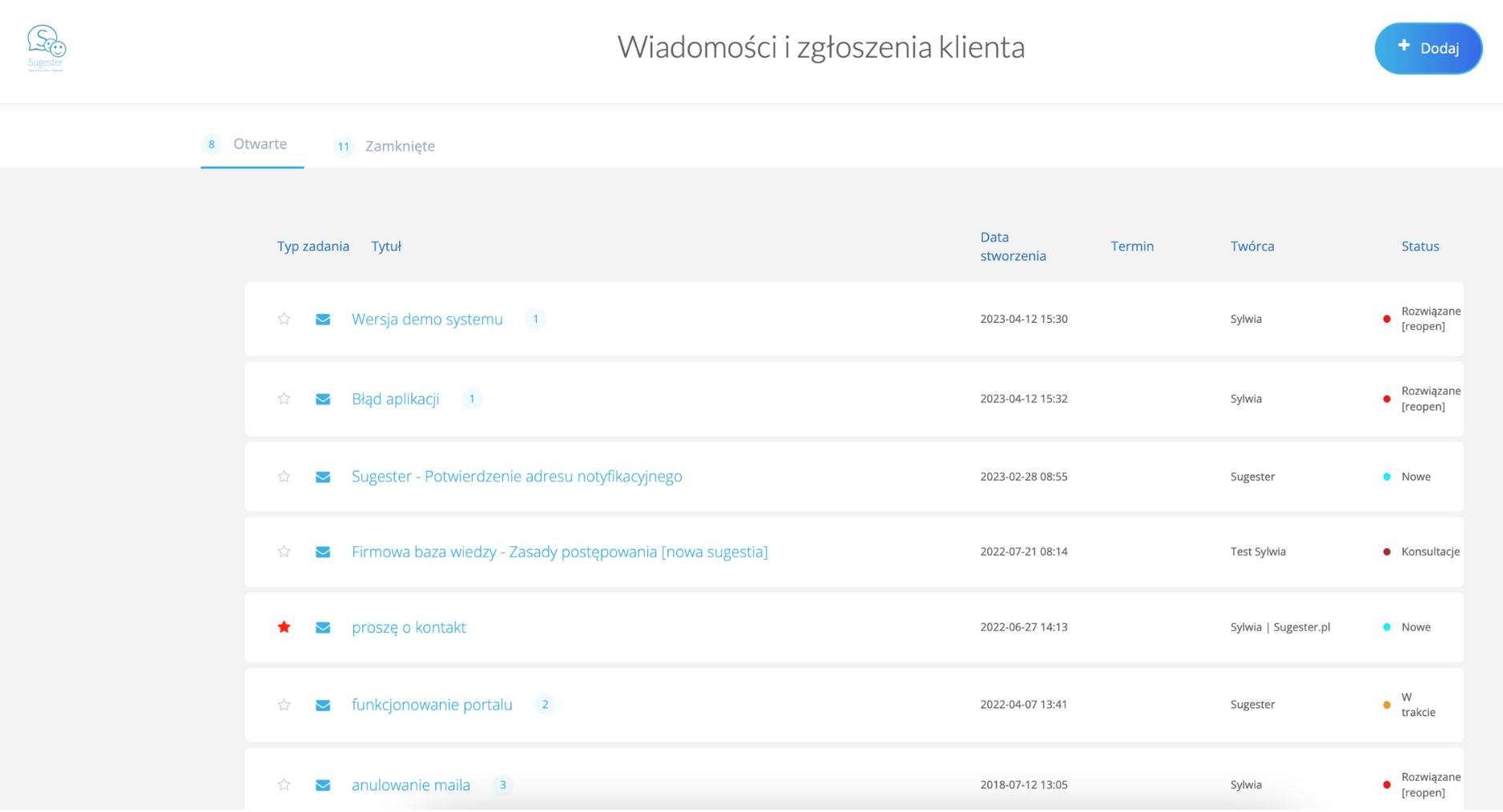
- copy the link that appears after checking the checkbox and send it to your clients
- the client will see all tickets added after the portal is activated
- the client always uses this link to access their portal
2. If you want to give selected clients access to the portal:
- select the client from the list to whom you want to give access to the portal
- click Edit -> More options and check the Client Portal checkbox
- choose which tickets should be displayed on the portal: all, by date, or only newly created ones
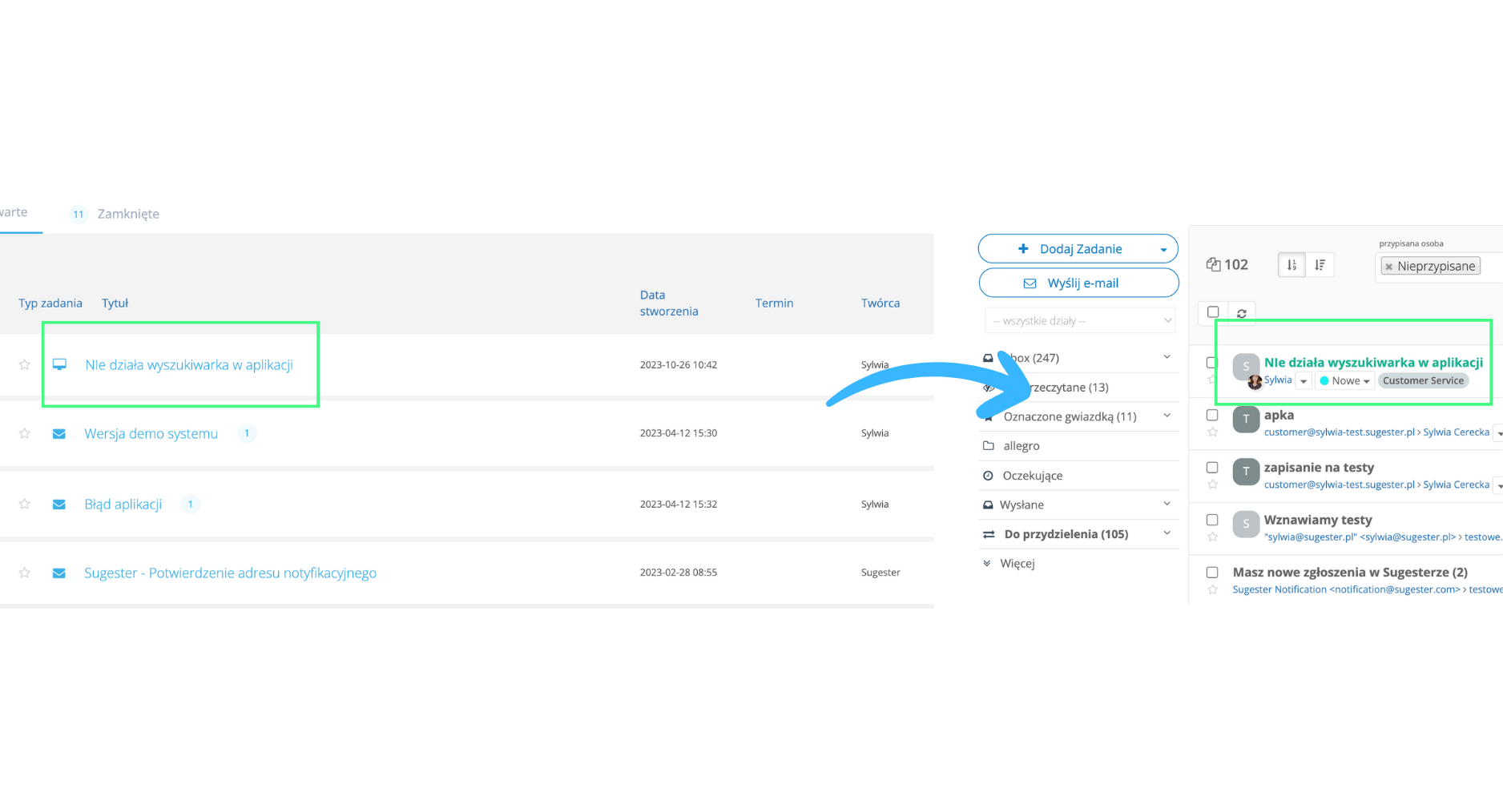
- if you want to restrict ticket visibility so that employees only see the tickets they submitted themselves, check the Tickets visible to user only checkbox
- send the generated link to your client, which will appear in the main view on the client card
- the client always uses this link to access their portal
See also: Our knowledge base article Client Portal.
How can the client portal improve ticket handling? 5 inspiring examples
1. Receiving bugs/faults/complaints from clients
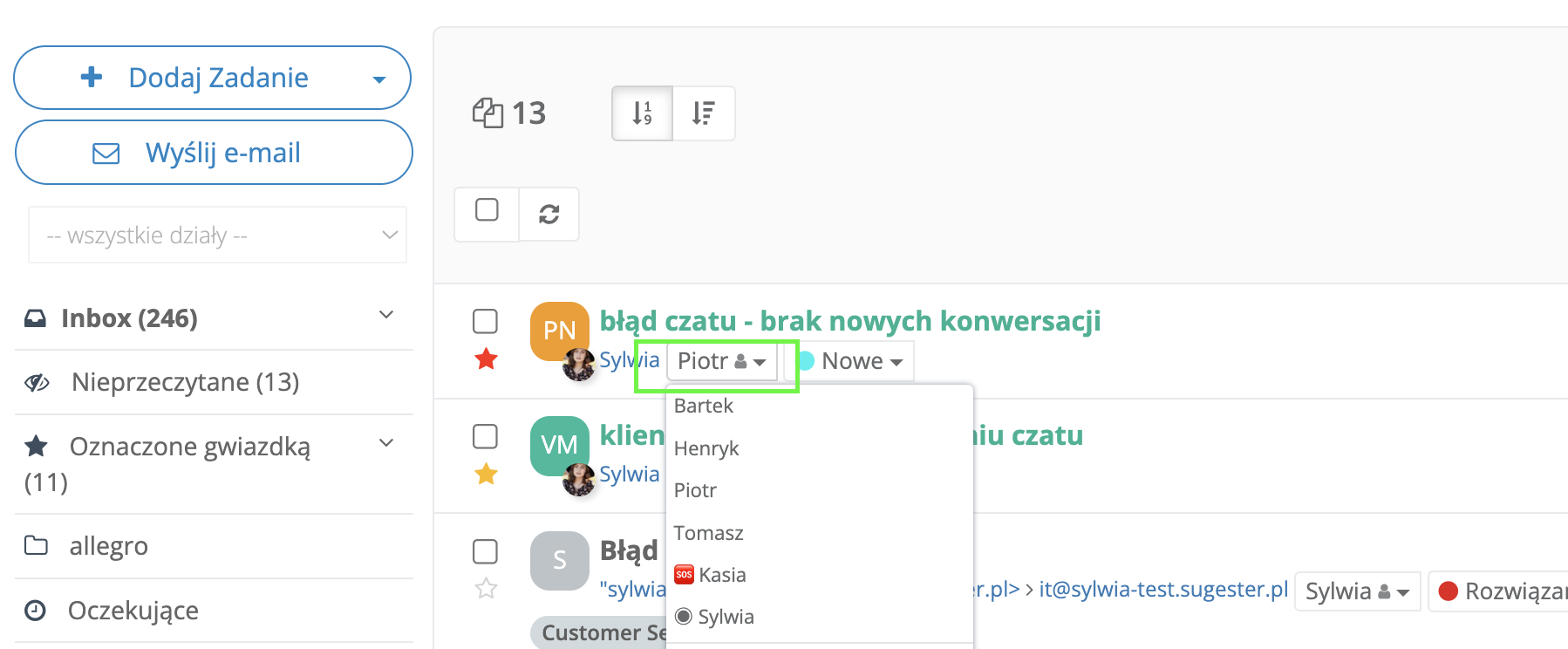
The client, by logging into their portal via the unique link they receive from you, can report a bug or problem with a single click. All they need to do is click the Add button. In the ticket they can accurately describe their problem and can also attach screenshots, photos, or any other document.
After clicking Save, the ticket goes directly as a task to the To Assign folder in the inbox on your Sugester account. All tickets in task form are displayed in green. From there, any employee can pick up the ticket and take care of the matter.
The task is also immediately visible in the CRM on the client card.
Each of your clients has access only to their own tickets in their portal. Additionally, if you work with several different people from one contractor, you can configure the portal settings so that each person sees only their own tickets, or the opposite — so everyone can see each other's matters. Simply check (or uncheck) the Tickets visible to user checkbox in the client's profile in CRM.
2. Setting priorities and determining the initial completion date
Before tickets reach specific people, they wait in the folder To Assign. From there, they are then distributed to a specific consultant.
A good solution is to designate one person in the team who will monitor incoming tickets, set priorities, and determine the initial completion date. If you don't have such a person, each consultant can do this independently.
Once the date is set, the client will see in their portal when they can expect their matter to be resolved. This will reduce the number of client contacts and positively impact the perception of your brand.

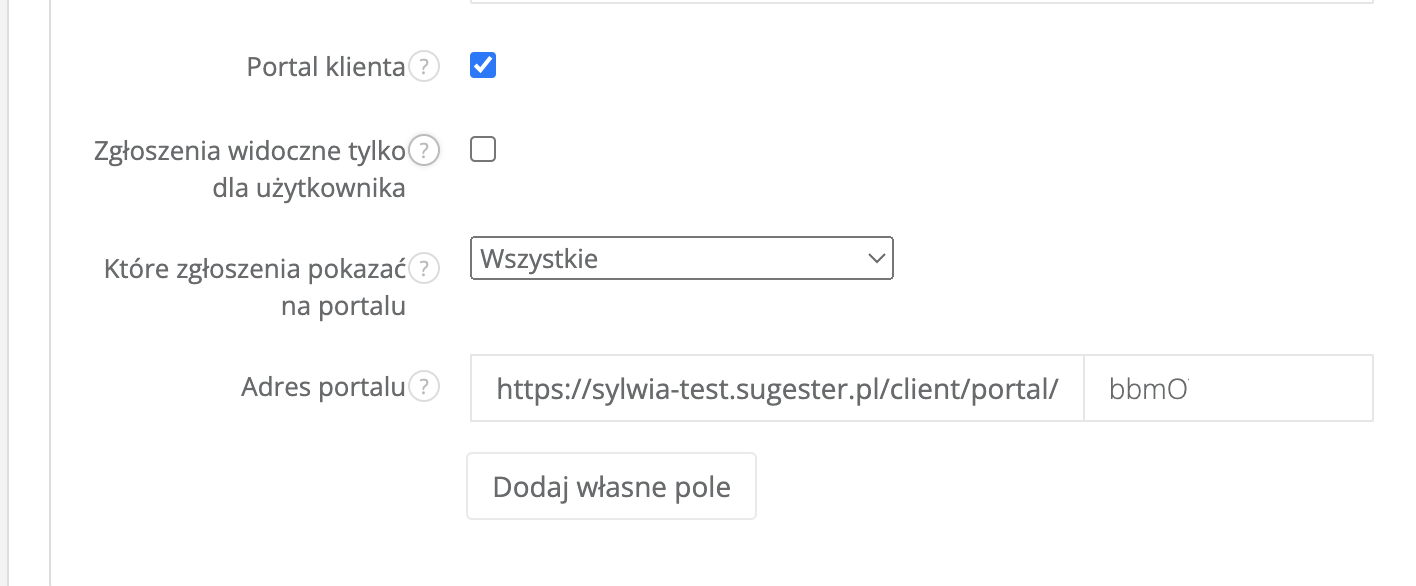
3. Delegating tickets to a specific person
By assigning a task to a specific consultant, everyone on the team knows who is handling a given problem. If the client calls, they can easily be directed to the person responsible for their ticket. The client is also more at ease, knowing that it is no longer anonymous handling of the matter and they can contact a specific person if needed.
4. Monitoring ticket statuses and resolution progress
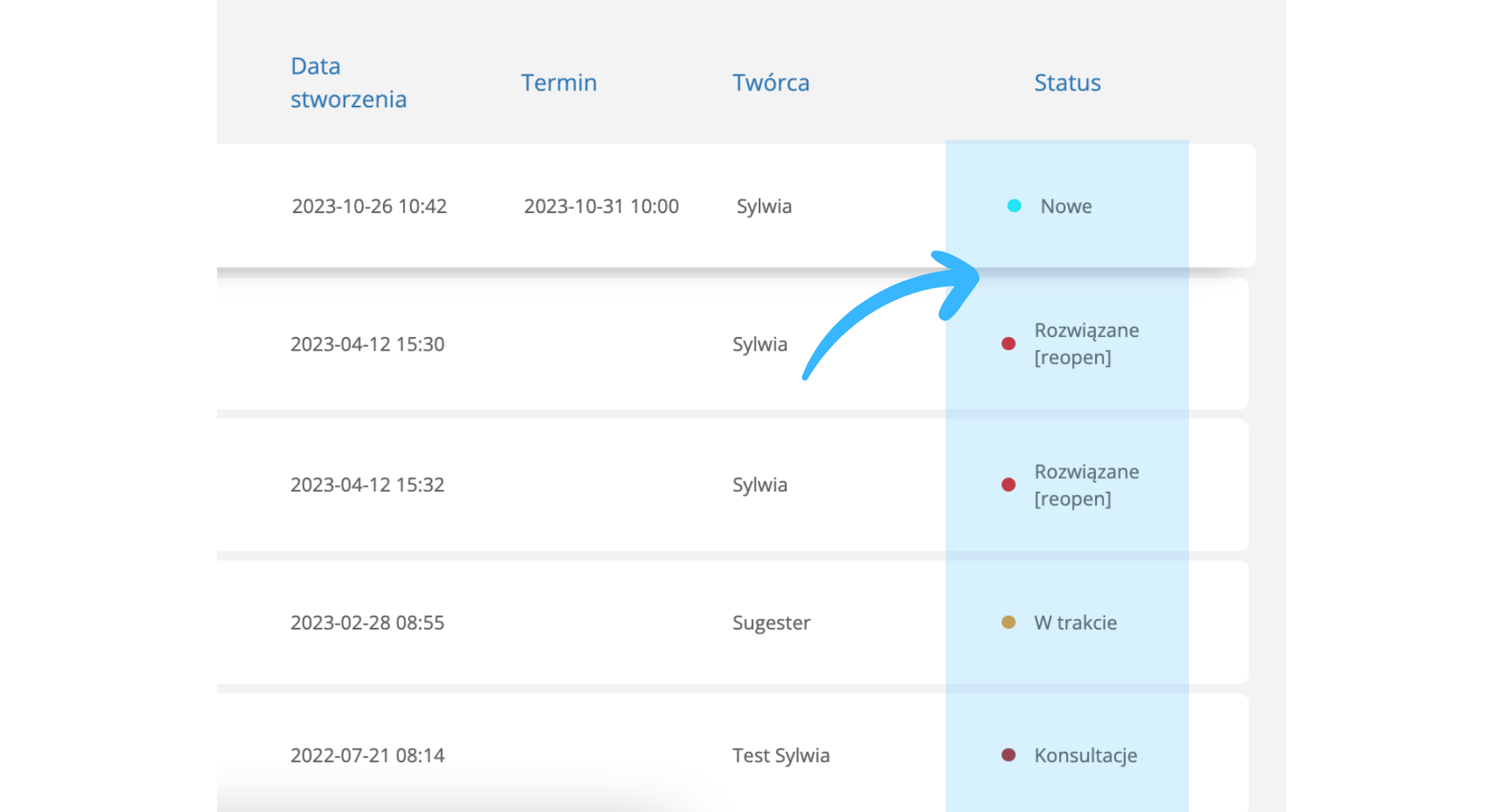
The consultant handling a given task can change statuses so that both their supervisor and the client know what is happening with the ticket and what stage it is at. If a task doesn't change status for too long, it's easier to identify what is blocking the further process and react accordingly.

The column view (kanban) in Sugester is helpful in monitoring this type of ticket.
See also: Column view of projects
When a matter has been resolved and the task is closed (status "resolved"), the ticket on the portal moves to the Closed tab. This tab also contains the full list of submitted and resolved matters, making it easy for the client to return to any of them.
5. Internal communication about tickets
It may happen that a consultant, while resolving a task, needs additional information from the client. Using the simple reply system in tasks, they can quickly communicate with the client and obtain the necessary information. Both parties — the consultant and the client — can click "Reply" and include additional questions or information.
There is no need to send emails, call, or fill out additional forms. All communication regarding the ticket is available in one place - in the ticket itself. This significantly streamlines work and reduces the time needed to resolve a ticket. Additionally, it's easy to refer back to such communication when needed.
If you think the portal will work for your company, check one checkbox in the system and activate the feature. The portal is free as part of your Sugester subscription. You can also have a completely free account if you fit within the free plan limits.
Create an account and activate the client portal
This article has been updated. It was first published on August 30, 2018.