
More than once or twice, in our conversations with clients, we hear the question: "Are you planning to use the mail module in Sugester?" - "No, we weren't planning to. We use a different provider. Is it necessary?"
It's not necessary, but just how useful it is and how many possibilities it opens up - that's what today's article is about.
Where to start? Perhaps with the fact that many clients who come to us are simply looking for a well-functioning CRM to organize their client base and, as it's commonly said, "make relationship management easier".
Not everyone who finds us knows that we have a mail module, or if they do know, they don't understand what it all involves.
That's why in today's post we want to explain how email works in Sugester, and what enormous - and yes, we're not afraid to say it - what enormous benefits it brings, not only from the client's perspective but also for the team itself.
We'll also say a few words about the technical side, because it's simply necessary.
And it's probably best to start with a few technical details to better understand how email in Sugester works.
Let's start with the first and most important point - to use email in Sugester, you do not give up your existing provider, such as Gmail. You don't delete your mailboxes and you don't transfer the entire service to us.
In Sugester, email works on a forwarding basis. The only thing you need to do is forward your mailbox from your current provider to Sugester. This means you will still have your Gmail account, and you'll manage it from Sugester - send and receive emails, create filters, folders, set priorities, and so on.
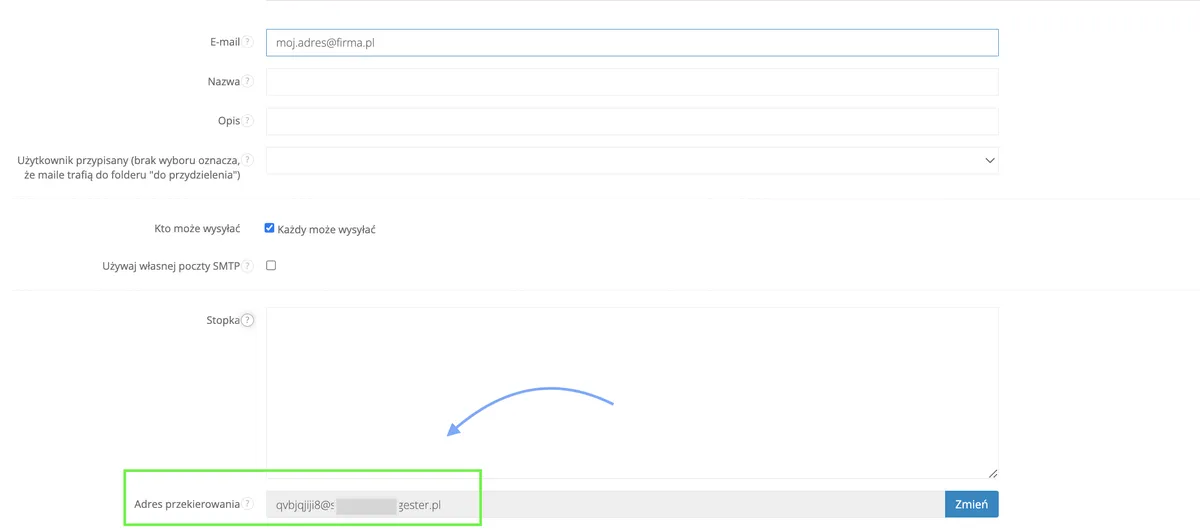
For everyone who immediately thinks "that sounds too complicated" - it really isn't! The email forwarding process takes a maximum of 10 minutes. All you need to do is add the email address you want to manage to your Sugester account, copy the unique forwarding token, and go to your current provider's settings (e.g., Gmail) to paste that token. Done!
That's all you need to receive email in Sugester.

See also: Forwarding email from Gmail
And to send emails, you don't need to do anything at all. Just sit down, write, and send. Unless you want to send via your own SMTP. More information on that topic can be found in our knowledge base.
One more important point before we get to the benefits. When you add a mailbox to Sugester, you don't need to worry about suddenly sending emails from some strange address. Nothing changes for your clients - even though you send emails from Sugester, the recipient sees your business address in your domain.
OK, with the technical matters behind us, we can move on to specifics.
Here are the most important benefits awaiting you when you manage your company email in Sugester
You might say "Wait. I manage several company mailboxes, in different domains, some of which my employees also have access to - and I can manage all of that in Sugester?" Exactly.
All your company mailboxes, across different domains, can be added to Sugester and forwarded so that company correspondence is managed right from within our system.
All emails are visible in a single inbox from which they can be managed. In Sugester, it's possible to assign a mailbox to a specific employee, so emails coming to that mailbox will be visible in that specific user's inbox. This means that if your employee handles several mailboxes, you can assign each of them in Mail Settings. The employee will then have all their emails from all their mailboxes in one inbox.
Of course, as the account owner, you have visibility into all emails, regardless of which employee a given mailbox is assigned to.
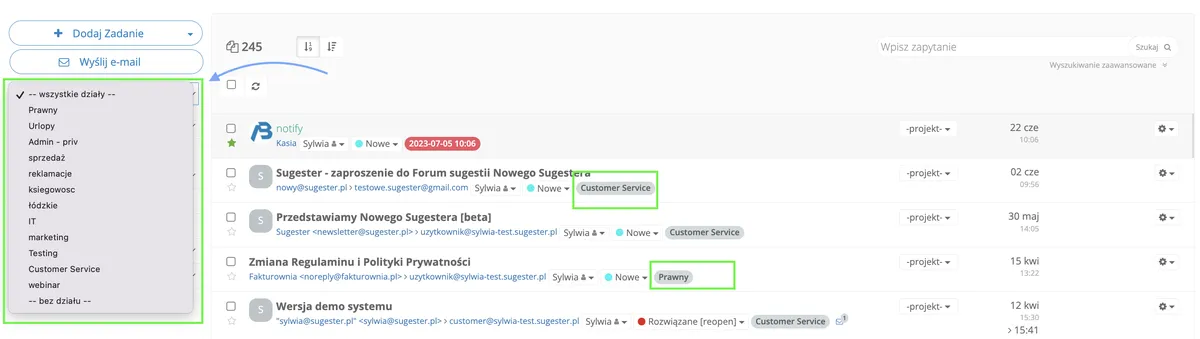
If you want - either to maintain order or restrict access to some correspondence - you can assign mailboxes to departments, e.g., accounting, helpdesk, marketing. Then employees in the accounting department won't have access to marketing emails, and vice versa.
If one person in your company handles all of these matters and there's no need to restrict access, you can simply use the department to specify what topics a given mailbox is for.
Your employee will then see labels displayed next to each email showing which department the email came from. They can also easily switch between correspondence from different departments using a single button in the inbox.
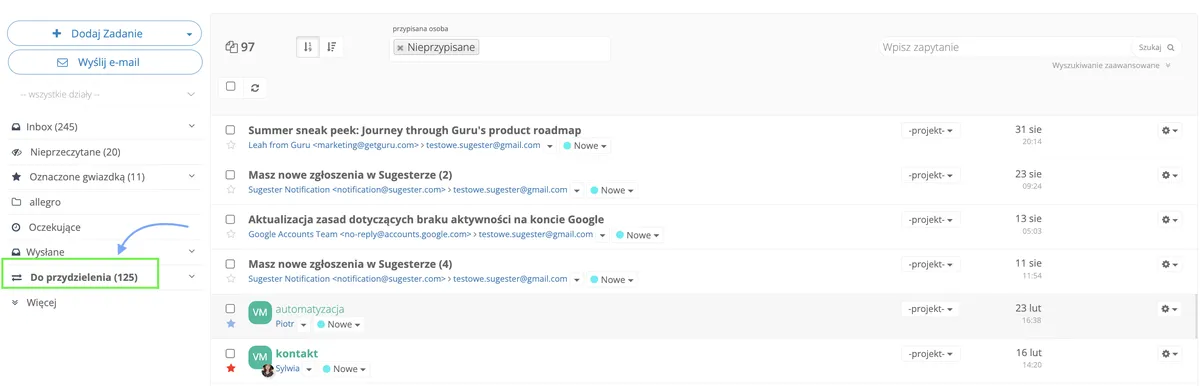
What if in your company there are several employees all handling one mailbox? We have a solution for that too. In the inbox there is an Unassigned folder where emails are visible to the entire team. Simply leave the Assigned to field empty in Mail Settings so that all emails from the company mailbox land in that folder.
How does email management work in such a folder? It can be done in 2 ways:
This form of email management in a company is very convenient and, above all, effective. It prevents situations where an email just sits there waiting for someone to deal with it, or where an email went to a mailbox that's rarely checked - and again, it waits.
And if you - as the owner - also want your own private mailbox in Sugester, nothing stands in the way. You can check the Private mailbox checkbox in that mailbox's settings, and then no one else will have access to it.
And finally - if you work with international clients, you can specify in the mailbox settings the language in which correspondence on that mailbox takes place. This affects, among other things, the language in which the Communication rating option will be appended, if you use it.
This is probably the main reason that should convince you to manage your email in Sugester. Because Sugester is a multi-module tool, all modules are integrated with each other. The integration of CRM with company email has a range of benefits - it can significantly improve client relationships, streamline business processes, and contribute to greater client satisfaction, which translates into better sales. So it's worth it.
If you have a client recorded in your CRM database and the client sends you an email, not only will you know exactly who sent the message in the inbox, but that message will also be saved on the client's card in the CRM.
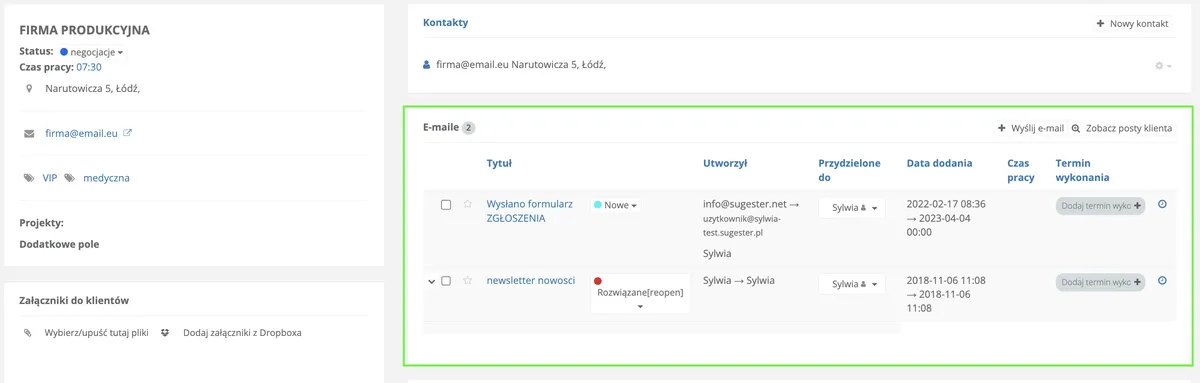
There is a special Email section where you can see the last 25 emails from your client. And if you need to view older messages? With one click, using the View posts button, you switch to the inbox and see the list of emails from just that client. There, using additional filters, you can search for the most specific information.
What does seeing emails on a client card give you? Every employee who opens that client's profile can quickly - even during a call with the client - check when the last email came in, about what, and who replied. The employee doesn't need to switch between different systems because everything is in one place - on the client's card in the CRM.
You can also immediately see the status of each email - whether a reply was sent, whether someone is currently replying, or whether the matter requires consultation.
This greatly speeds up the service process and prevents your employees from duplicating work. You also avoid irritating the client who has to explain their situation every time because the employee "isn't up to speed".
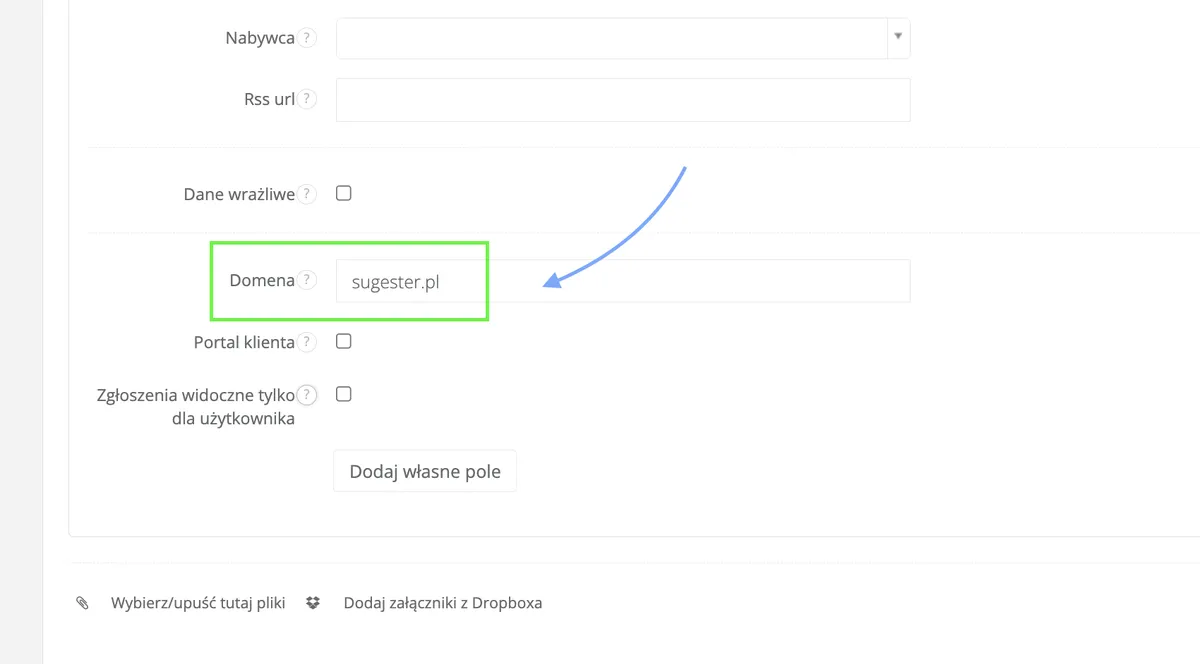
On the topic of email and CRM integration, there is one very useful feature worth mentioning because it greatly simplifies email management. On the client card there is a Domain field. If you fill it in with your client's domain name (if your client were Sugester, you'd simply enter sugester.pl), then every email from that domain - even if the contact address isn't yet in the CRM - will be displayed in the message list as an email from that specific client.
This means that if your client writes to you from some new company address that you don't have saved in your database, the system will automatically add that address to that client's contacts and attach the message to that client.
Thanks to this, your client can write to you from a different domain address every day and you'll still see all those emails on their card. The Domain field is truly invaluable and it's worth remembering to fill it in.
The emails visible on the client's card are also useful when a client comes back after a long absence. Then you just need to review their recent correspondence to know when and why contact was lost. Such a client will certainly feel special if you show that you remember them and know exactly what you last discussed. That attitude will positively affect your relationship with them and increase their satisfaction with your services.
Another major benefit of CRM integration with the email module is that you can personalize your offer and propose exactly what the client is looking for. By seeing what topics were covered in email correspondence, you know what your client is looking for and what they are interested in.
We've already touched on this when discussing all the company mailboxes you can manage in Sugester. But now we want to say something more.
Email communication history doesn't only mean emails that have come to you since forwarding your mailboxes to Sugester. If you decide to use the email module in our system, you can import the entire email history from your current provider, e.g., Gmail, into Sugester. This way you have all your email correspondence history with clients from the very beginning, without losing any data.
During the email import you can specify which mailbox the imported messages should be assigned to, and even to which employee - if needed.
And again - everything in one place, at your fingertips, without switching between systems.
One of the modules available within a Sugester account is the mailing module. And it's really a shame not to use it if the opportunity is there - at no extra cost.
Again, you get many benefits here, especially if your main communication with clients is by email.
First, from one place, without needing any other systems, you can manage all email communication in your company.
And second, you start sending email campaigns, which means you start becoming more visible and recognizable among your recipients, increasing your reach, and thus your chances of better sales.
The mailing module in Sugester is simple but has all the necessary features to build a recipient list, prepare a mailing, and send it out into the world - then track its results.
You send mailings from your company mailboxes, and you can send via our servers or your own, depending on your preferences.
Of course, every mailing send is visible both in the Emailing module and in the CRM. Entering a specific client's card, you can see that they participated in your last email campaign. By checking whether the email was opened by that client and whether there was any reaction from them, you can plan further, more personalized campaigns.
Every client in the CRM can also be tagged with a tag. Then, using search, you can find a given tag and use it to create a mailing list. This is very useful if you want to target personalized marketing campaigns to specific groups of clients.
Even if you think you don't need to use mailing, isn't it worth using if the tool is right there? Sending email campaigns is still in the top channels for acquiring new clients.
We all love them :) And if you can check various things at any time, in one place, without creating complex rules - that's a pure win.
Using Sugester, you have access to reports that allow you to check and compare various data in the system, including email-related data.
Data about managed emails can also be checked in the advanced search in the inbox, but let's take it step by step.
We have 3 most popular ones that allow you to:
See also: Company knowledge base - necessity or unnecessary detail?
Compare how individual employees are working. We have a special report for this - the User Activity Report - which lets you verify how many emails each employee handled in a given period and how that compares when put alongside their colleague on the same graph. Such data will allow you to verify whether the workload in your team is evenly distributed and whether it can be improved. Interested? Take a look at our knowledge base where we describe exactly how this report works.
In Sugester, often enough data can be checked simply by using sorting or search.
In the case of emails, using the Advanced search in the inbox, you can make various filter configurations to find the most specific information.
For example, you can check:
There are really many combinations.
Finally, a few words about the features available in the Sugester email module. If you're worried about missing your favorite feature, you really don't need to be. Sugester has all the most important functionalities available from other popular email providers - and even more.
Email threading, email signature, folders, filters, automations, tags, notifications, attachments, search, BCC and CC - you'll find all of this in the Sugester email module.
See also: How to undo an accidentally sent email
Sharing a post with a client. With this option, you can - for example to confirm something - share a specific post with the client, without the possibility of editing or deleting it. The post can be opened without logging into the system, which is very useful especially when your client is not a system user but needs to review the details of their project.
Converting an email to a task. If you want an email's content to become a task, just use the Convert to task option. This saves significant time and speeds up handling requests. You can make this change manually or automatically by changing mailbox settings or adding the appropriate filter.
We hope we've convinced you how important an integrated company email - tied in with the CRM system - is, not only from the perspective of client relationships but also in terms of the service process itself. You not only handle emails more efficiently but also gain broader knowledge about your clients, allowing you to manage relationships with them more effectively, reach a larger audience, and improve your competitiveness in the market.