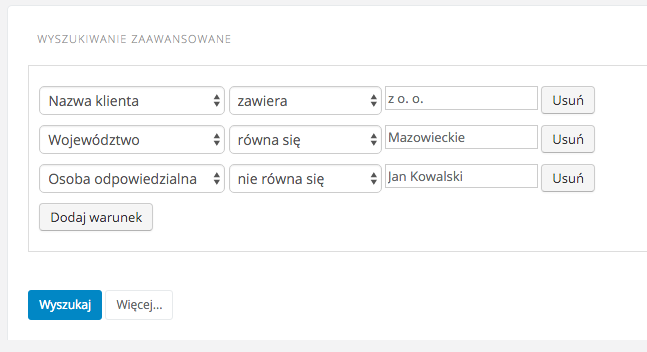
In day-to-day company operations, managing information is just as important as having access to it. Usually, the problem is not gathering the right data but finding it quickly. It's hard to make rational decisions when you're not entirely sure where - or how - to search for company emails, tasks, recent sales, or important customer information.
And even if you have a system like Sugester where all the data you need is in one place, that's not enough on its own.
Only skillful use of the available features will give you real efficiency gains at work.
One of the most useful features for saving a great deal of time is advanced search in Sugester. It lets you reach the information you need with just a few clicks.
Let's look at the data search options available in Sugester. There are several, and below you'll find a description and a few useful tips for each.

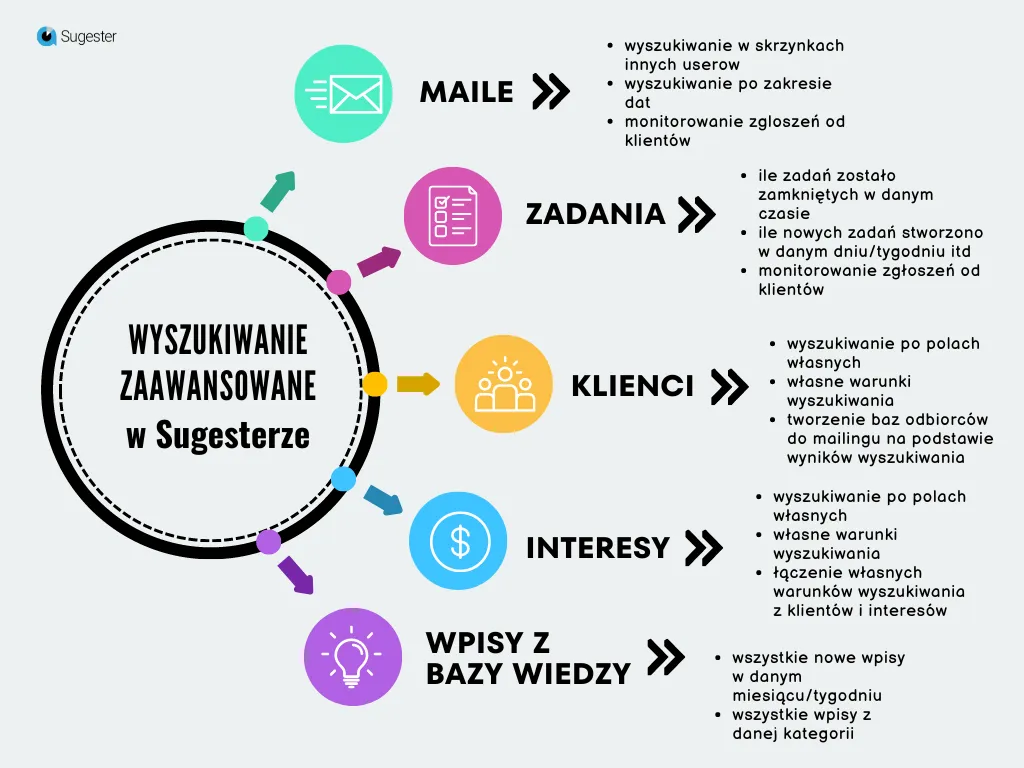
Let's start by looking at the options for searching through your emails and tasks. The advanced search panel looks like this:
Beyond the basic functionality of searching for a chosen keyword, you can narrow or broaden your search using a range of other parameters that make it easy to find the information you need. The filters available in the search can be combined freely, making your search even more precise.
Here are a few specific examples:
If your permissions in Sugester are not restricted, you can easily view other users' emails - for example when a colleague is sick and you need to take over their cases. To reassign their emails to yourself, simply:
The system will display all open emails in the selected user's inbox.
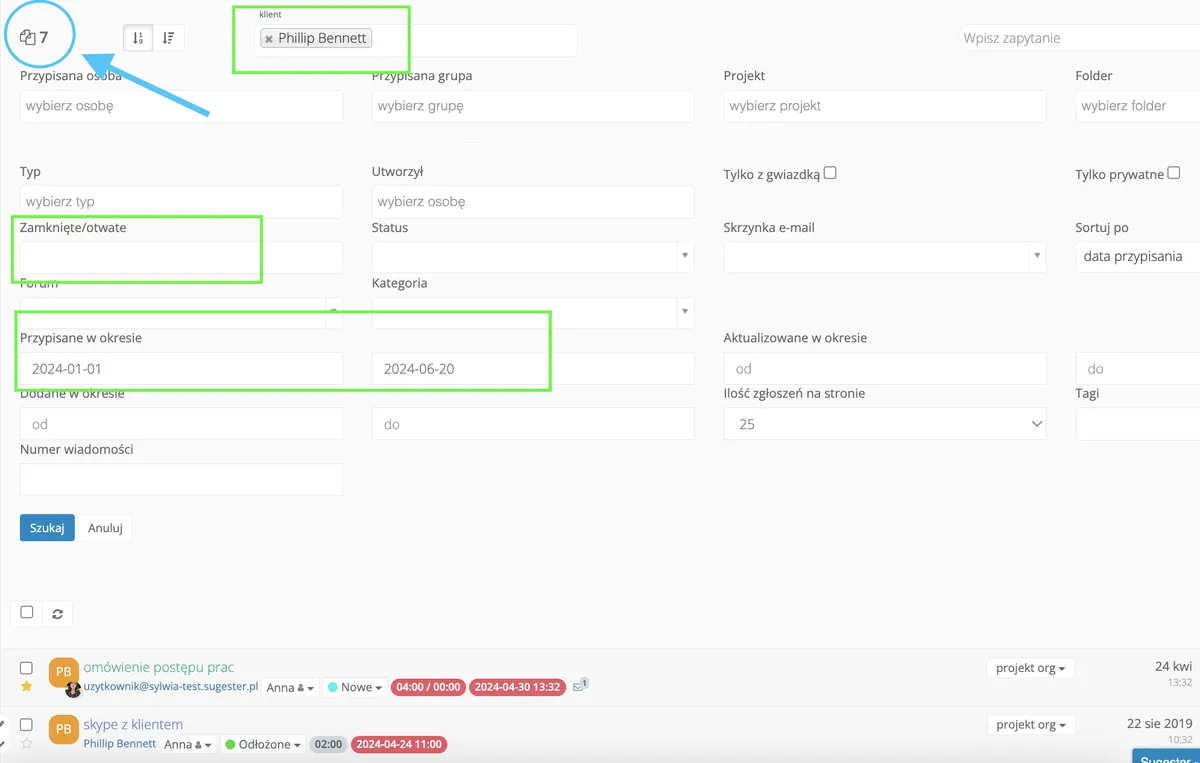
Instead of digging through a pile of emails on a customer's profile, you can search in the inbox for exactly the message you need. You can narrow the time range to a specific month or even the past few days. Simply:
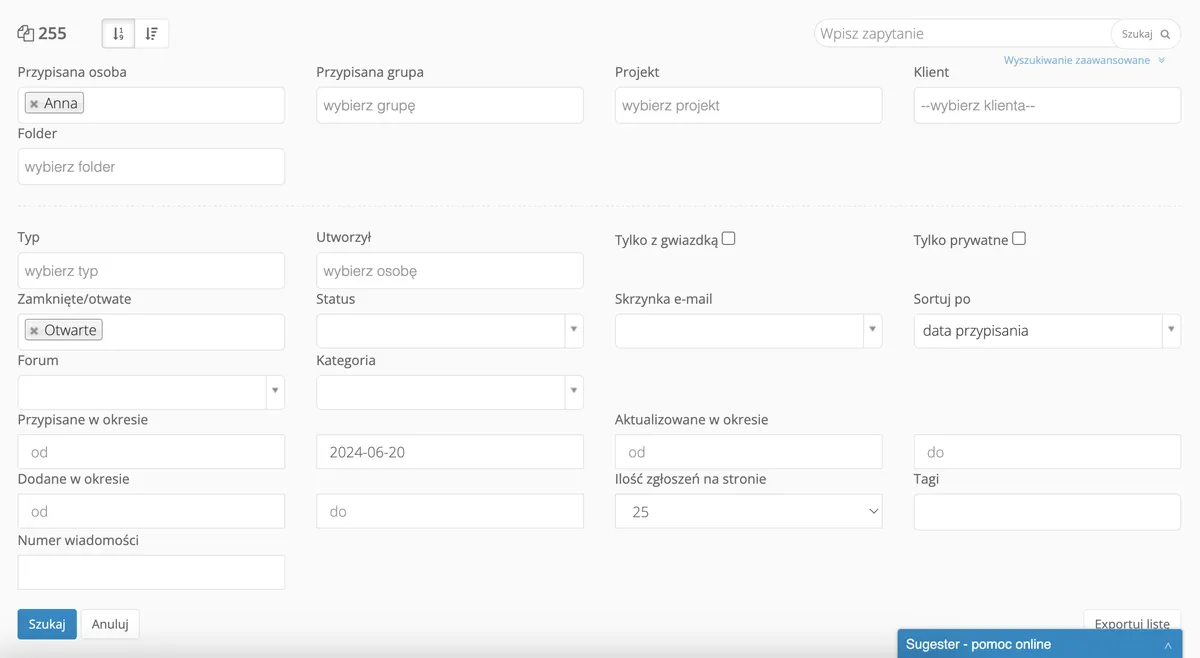
These are just two of the many possibilities available.
You can also use advanced inbox search to monitor customer tickets coming in to, for example, the support department. Tracking tickets this way replaces the need to review complex reports.
With advanced search you can check, among other things:
You can do the same for tasks - simply select Task in the Type field.
If you use a company knowledge base, you can search for any entry from it in your inbox in the same way as with emails and tasks. The only thing to remember in the search criteria is to select "help" in the Type field, as that's what a knowledge base entry is. The rest of the search rules are the same as before.
See also: Company knowledge base - a necessity or an unnecessary detail
Another place where you can search for specific data in detail is your customer database and the deals list.
In both cases the functionality works the same way, so for the purposes of this article we'll focus only on searching customers.
Sugester allows you to search the customer database in two ways: using search filters and conditions.
You'll find the filters on the customer list on the left side. As with advanced search in the inbox, here too you can combine filters freely and fill in various fields to narrow or broaden the search results.
You can, for example, find all customers who purchased a service from you, to whom you recently sent a mailing, and who belong to the "sales" department.
Note that in this search, only the Tag field allows you to select more than 1 element.
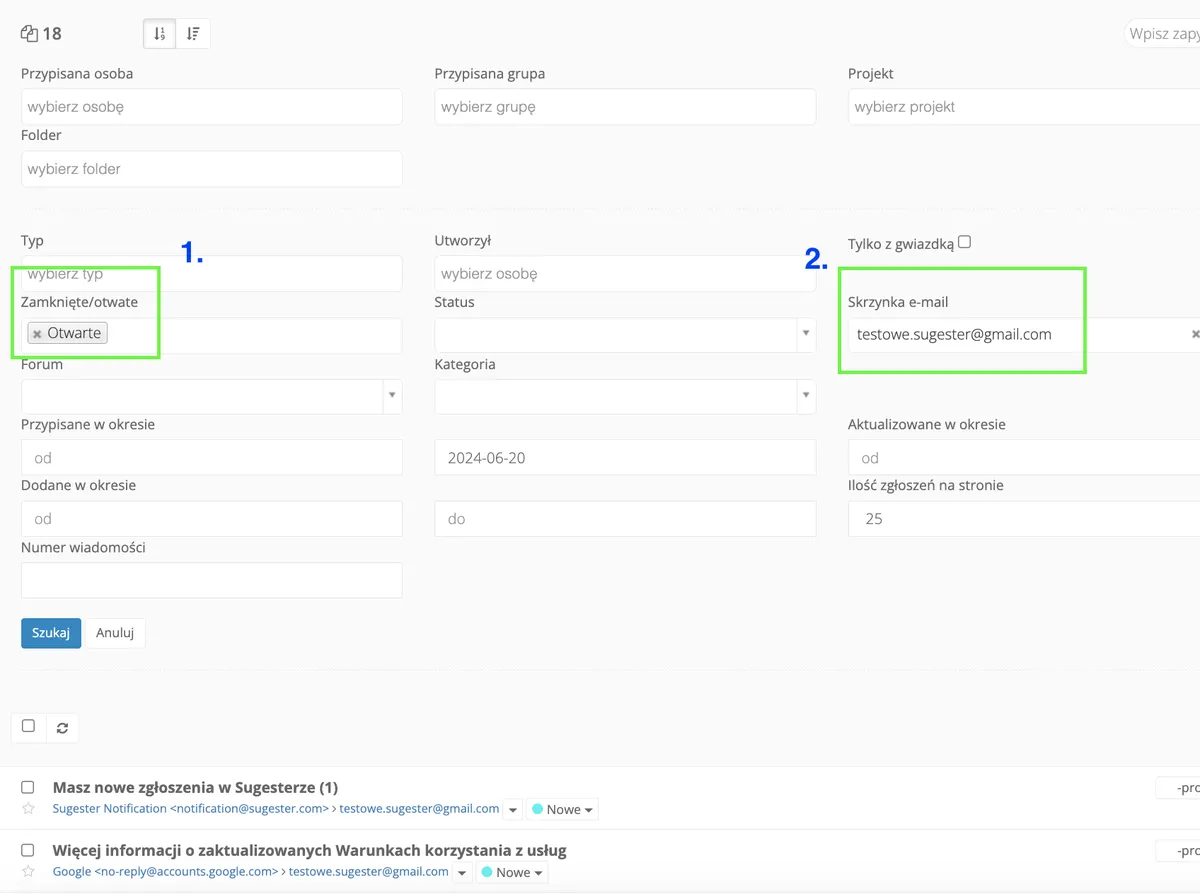
The second way to search the customer database is to select several conditions that the target records must meet. You'll find this search below the Search button on the customer list.
Take the following example:
After clicking Search, you'll only see customers from the Masovian Voivodeship who have any person responsible other than Jan Kowalski, and whose name contains "sp. z o.o." (Ltd). You can add as many conditions as you like. You can also adjust how strictly the conditions must be met - there are up to 55 match accuracy variants (to see them, expand the -more- option in the "contains" field).
You can also search customers here taking into account data from custom fields. If, for example, you record the industry of your customer in a custom field, then entering the condition
Industry = marketing
will find all your customers in that industry.
You can search the deals list with the same level of precision. Just as with customers, you can choose whether to use the available search filters or enter your own conditions.
Using advanced search in deals you can find, for example:
If you need more specific examples of deal searches, check out the article Deals in Sugester - our way of managing your sales process. You'll find concrete examples with specific search conditions there.
Advanced search in Sugester is an invaluable tool for finding exactly the information you need, down to the smallest detail. Simply formulate the right conditions - you can also combine filters with additional search conditions.
Also remember that when using advanced customer search, you can create a mailing recipient list from the search results.
If you're interested in sending mailings from Sugester, you can read more about it in our knowledge base.
Article updated. First published on 18 March 2016.