Did you know that Sugester offers nearly 800 features available to customers? How many of them do you use? How many do you not use, and how many are you unaware of? Discover 9 lesser-known - yet very useful - features in Sugester
Even if you've been working with Sugester from the very beginning, you might be using only a few features daily that you learned at the start, and that's how it stayed. If that's the case, unfortunately, you're missing out on a lot.
To change that, we've prepared a list of features that we know you don't know about, which will definitely increase your team's efficiency and impact the organization of work in your company.
By monitoring sales, you know what profits your company can generate, but you also know the problems you can respond to in a timely manner.
Sugester allows you not only to record completed transactions but also to break down the sales process into stages and monitor each one. You just need to introduce deal statuses into your CRM. Thanks to them, you'll know how many sales attempts ended in success and how many in failure. Add, for example, contact, meeting, negotiations, realization.
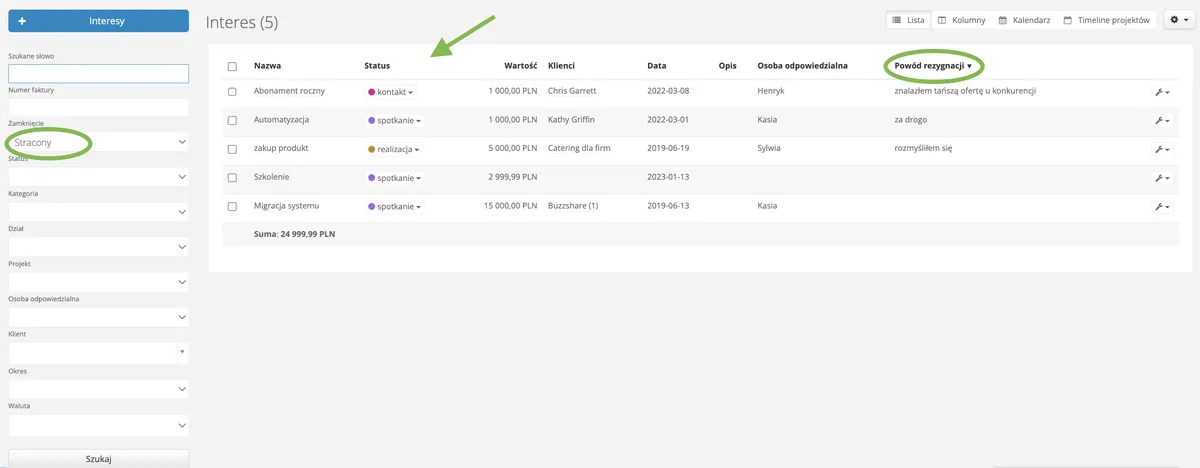
Also add a custom field in deals to record reasons for purchase cancellation (e.g., "Reason for cancellation").
Every time you move to the next stage, change the status. If at any stage the client withdraws from the purchase, mark the deal with the checkbox "lost" and in the custom field "reason for cancellation" enter what happened.
Thanks to these actions, you can easily sort lost sales opportunities, check at which stage (status) the cancellation occurred, and draw conclusions for future sales.

In Sugester, you can convey various messages to employees, not necessarily via email. You can use, for example, the changelog function. What advantage does the changelog have over email?
You can return to information from the changelog more easily without sifting through piles of emails. Additionally, the post statuses visible in the changelog immediately inform the team how important the conveyed information should be to them.
First, create an internal knowledge base, as the knowledge base is essential for the changelog function.
Once you've added the knowledge base to your account, go to the knowledge base configuration and in the "Privacy" section, select "Who can add new entries" - only operators, and "Who can browse the knowledge base" - Only registered users. This way, only your employees who use Sugester will have access to the information posted in the base.
Add post statuses in the knowledge base
Thanks to statuses, you can signal to users what the message is about. For example, in Sugester, we have such statuses for the changelog: blog, important message, update, news.
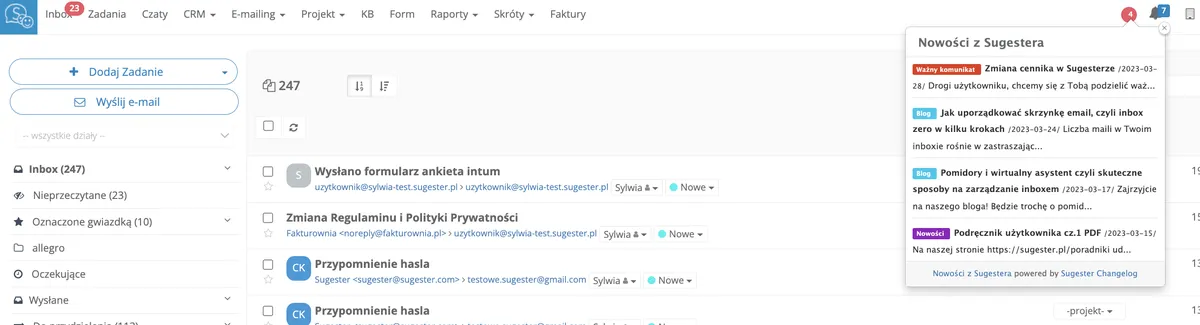
Launch the changelog widget
You can add the widget (by pasting a special HTML code) anywhere on your website or application. You can find the code by going to Settings -> Changelog on your account. After pasting the code - in the selected place - a red dot will appear, informing users that a new message has appeared.
In the changelog configuration, you can choose which category posts should be displayed in the changelog. This is controlled by the "Show entries from category" field.
Sprints are invaluable if you want to achieve a specific goal within a set time. A sprint should last between 1-2 weeks and be planned based on a task list.
There's no better way in Sugester to monitor team work than sprints. Thanks to task division and clear graphics, one glance is enough to assess what stage you're at in achieving the goal and how many tasks remain for each person within the sprint.
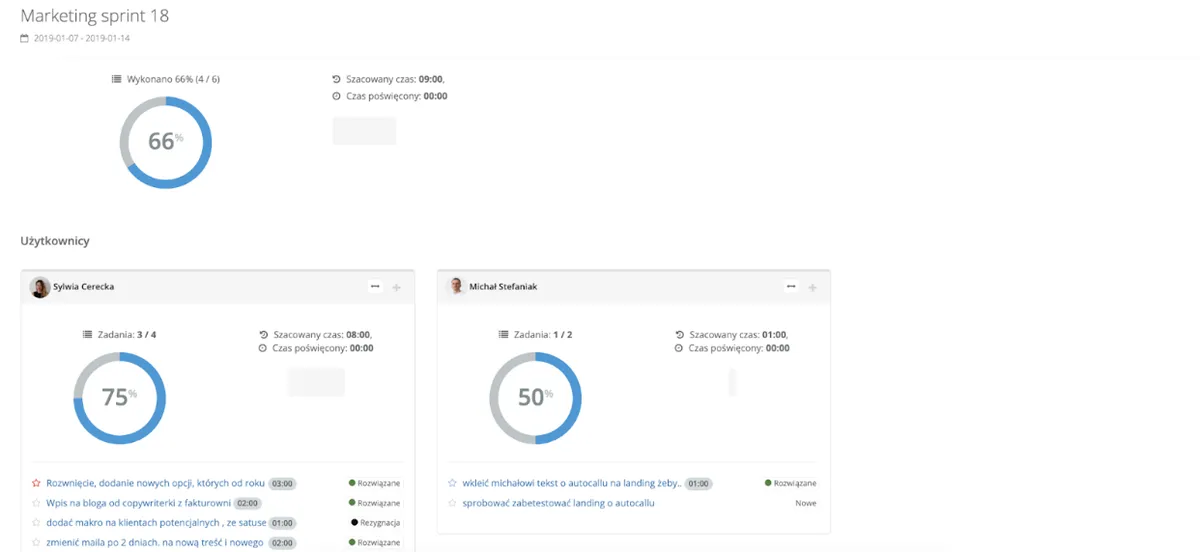
Take, for example, a sprint for the marketing department. Every week, the marketing team has tasks outlined to complete. By entering this sprint, you see the real progress of work for the day. At the end of the sprint, you see that the goal for the week was achieved at 66% and that one user completed only half of their assigned tasks.
This way, you can more easily verify which tasks are problematic and which are more time-consuming. This allows you to more accurately estimate future planned work. It's also easier to assess employees' predispositions and engagement.
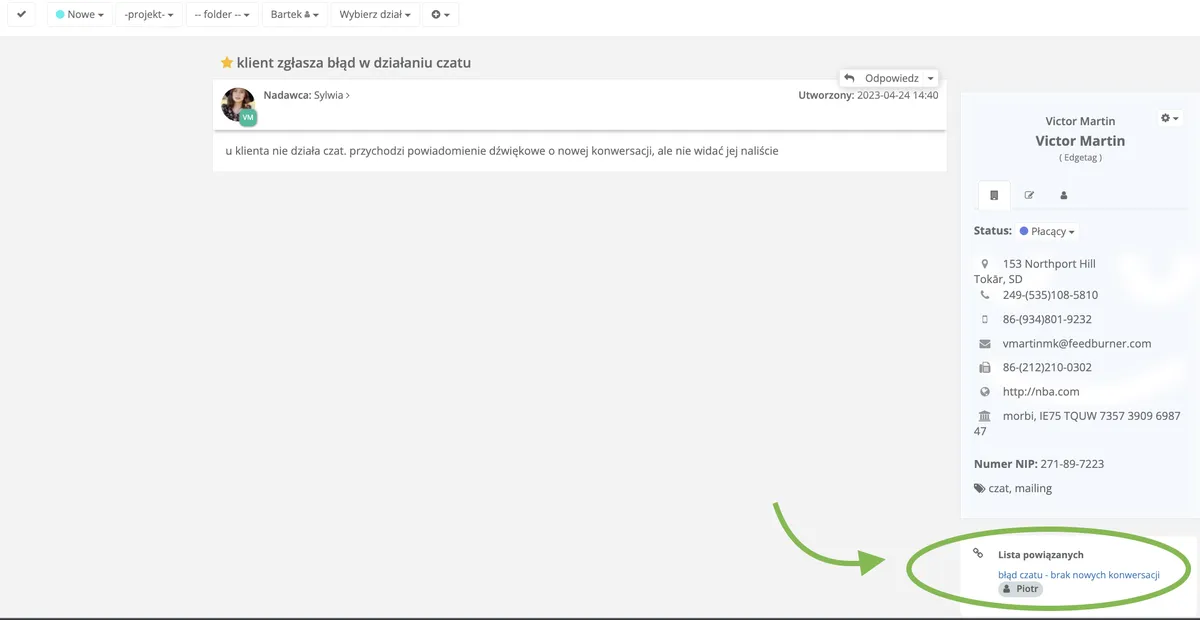
Thanks to the ability to link a task with the appropriate email or another task, you can save time on rewriting important information from messages that should be included in the task.
If the issue described in the task has a longer history, adding this task to the email thread or another issue significantly facilitates the work of the person handling its resolution and saves their time.
Let's say a client contacts us reporting an error in the application. It turns out it's the same problem that appeared for two other clients. The consultant adding a new task from the client can link it to an already existing similar task for another client in the system. The employee responsible for fixing errors has several different examples, can switch between linked tasks, and thus has a broader view of the reported error and can find its cause faster.
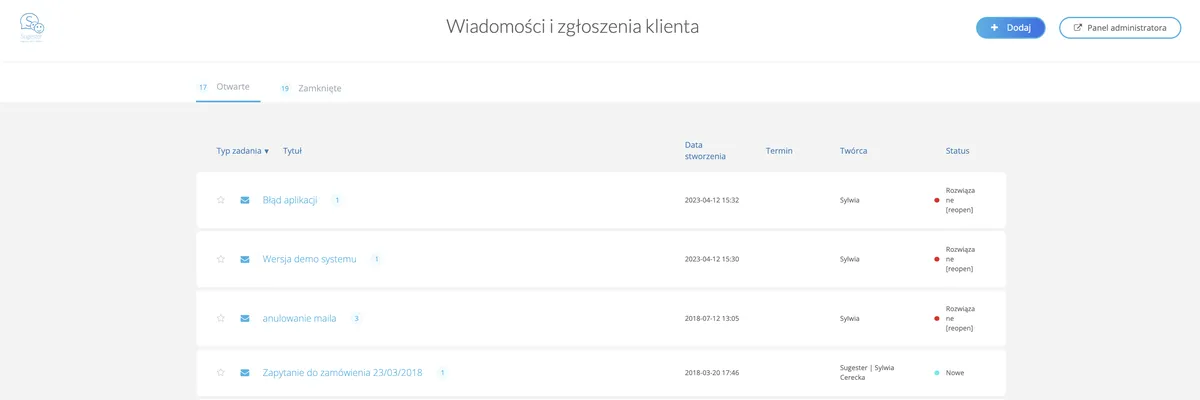
Client portal is a special space created for your clients, who can easily not only submit requests to you but also - and perhaps most importantly - monitor the progress of their realization without needing to contact you.
All you need to do is activate the function for your client and provide them with a unique link through which they will log in and submit requests to you.
Each submitted request is automatically converted into a task in Sugester and goes to the "To be assigned" folder, from where it is forwarded to a specific user.
The employee working on the request can communicate with the client within the request. The client, on the other hand, sees the most important data regarding the request - creation date, priority, who is handling the request, and its status. Every change in the request is visible to the client, so the client doesn't have to contact you frequently to ask about the expected resolution time. All information is available in the client portal.
All contacts you collaborate with should be in the CRM system. Therefore, besides clients, you should also enter your partners, suppliers, subcontractors, and all those important for your business into Sugester.
If you need to divide your database, you can do so using client categories.
Create categories in the account settings, e.g., clients, suppliers, subcontractors, and then assign the appropriate records in the database to these categories.
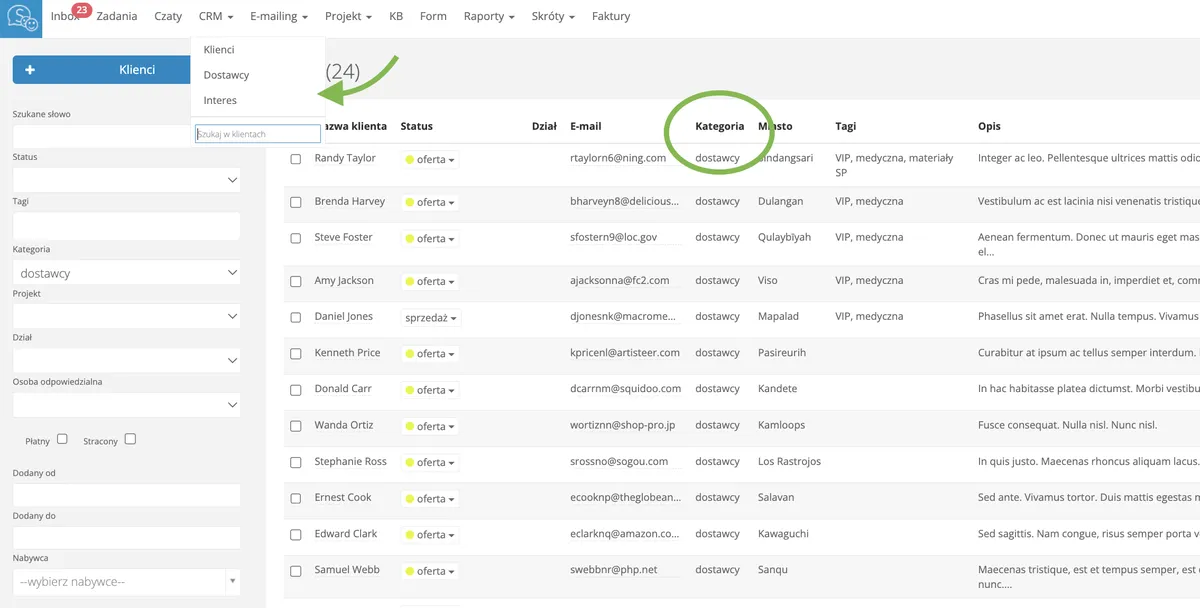
And to make it easier to search for data and save time, you can additionally "extract" the categories added to clients as separate tabs in the main menu. This way, if you need to find a subcontractor, for example, you just click the "subcontractors" tab on the top bar.
Go to Settings -> Account Settings -> Advanced. In the "HTML inserted into Admin Panel" field, paste the script:
In the place PASTE LINK TO CATEGORY IN CRM HERE, paste the link to the list of records from the selected category. To get it, go to the CRM tab and in the "category" field in the search engine, select the name, e.g., "Suppliers"
When the system searches for all suppliers, copy everything in the URL and paste it into the script. Finally, in the place ENTER CATEGORY NAME HERE, enter "Suppliers" (without quotes).
This is the effect you should achieve
Sometimes it happens that you need to check an email from a client that is in a different inbox than yours. This happens, for example, when a colleague goes on vacation and something is left in their inbox, or when a client mistakenly writes to the wrong inbox.
As long as the other employee's inbox you want to check is not private, you can do this using advanced search in the inbox.
And if you're an admin - well, no inbox has secrets from you.
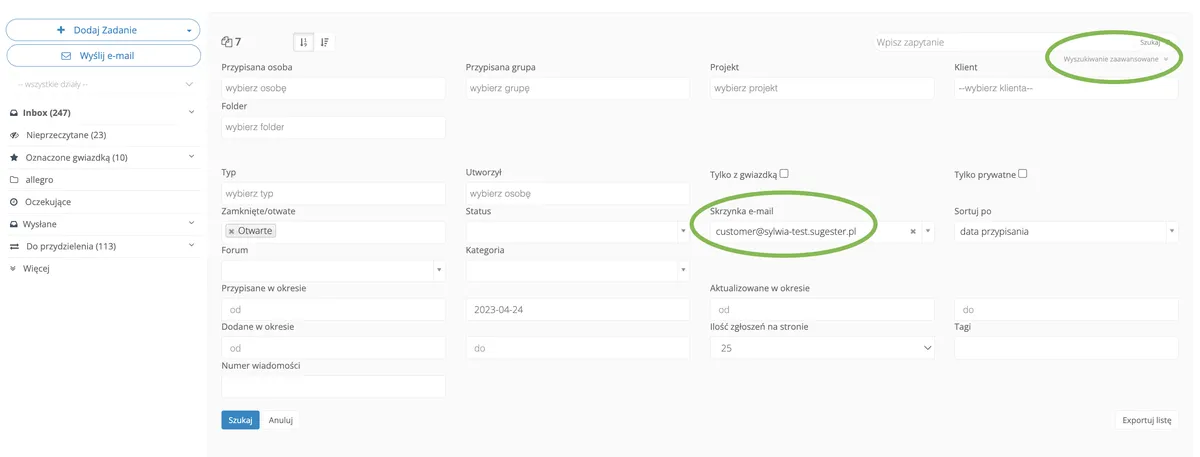
If you want to look into your colleague's inbox, simply go to advanced search in the inbox and in the "Email box" field, select the address you're interested in. The system will display all emails in the selected employee's inbox. Of course, you can further narrow the search using the other filters available in the search.
Are you wondering why your client database is approaching the upper limit, even though there aren't actually that many clients yet?
Probably some clients in the database are entered twice, or maybe even three times. This can happen if clients are added to the CRM by different users.
This causes, firstly, you to reduce the client limit available in your subscription plan, and secondly, the same clients added to the database cause chaos, and emails, tasks, notes are randomly attached to different records. As a result, a user who accesses a client's card will never see complete data about them, and therefore - will not take proper care of them.
To change this situation, simply activate functions on your Sugester account that prevent adding clients if they already exist in the database. In the CRM configuration, you will find options such as blocking duplicate NIP numbers, phone numbers, PESEL, and email addresses.
Activate this option if you want to maintain order in your client database.
Let's say you have several additional folders in the inbox that are rapidly filling up with order confirmations from allegro or payment notifications.
They might be necessary, but do they really need to be open all the time and create chaos in your inbox?
Use the "Automatic action on folders in the inbox" function in Sugester and organize your notifications. Set your folder so that emails automatically archive, e.g., after 30 days. This will not only bring order to your inbox but also increase efficiency on your Sugester account.