
Most companies place contact forms on their websites and stop there. Few people know that forms are not just an effective contact channel, but also a way to reduce traffic to hotlines, personalize sales, or improve interdepartmental collaboration.
That is why in this article we will show you 6 concrete examples of how you can use forms in your company.
We will not go into detail about which fields to add or how to match the design to your website's branding, because we have articles on that in our knowledge base - Form examples and Creating forms.
We want to show you in which situations using forms comes in handy and how you can easily set things up so that some actions happen automatically. We will show you how to use a
This is probably the most common form found on a website, so we will not spend too much time on it. If you already have a contact form on your site, you probably know that
Let's pause here for a moment. How a good contact form should look - short, with a few fields such as email, phone number, message body - is easy to find online, there are plenty of examples. What we want to show you is
Simply embedding a form on your website is not enough. In Sugester, for example, you can configure the form so that the data left by the visitor is automatically saved in your CRM as a new potential customer. How? Simply enable customer mapping.
What does that actually mean? If a visitor to your website leaves even just their email and name, the system will automatically add them to the customer list in the CRM module.
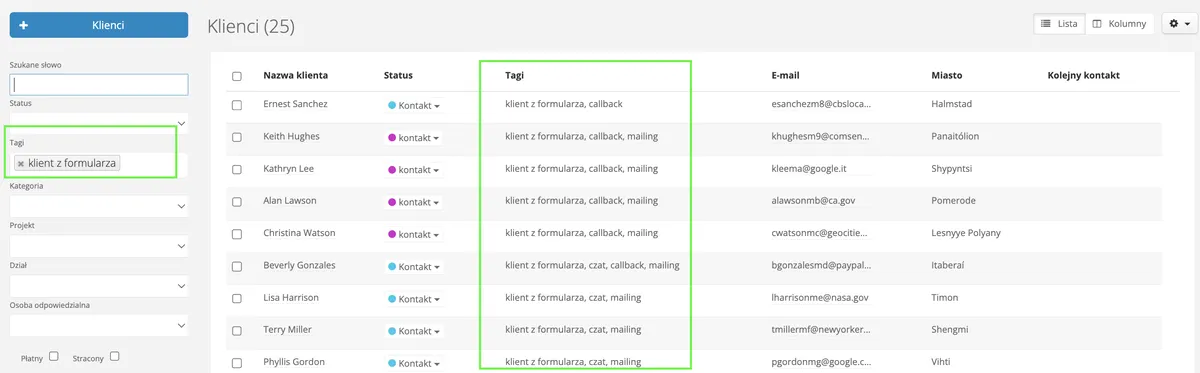
By setting up customer mapping, you can precisely define which form field corresponds to which data on the customer card. For example, you can include a field that maps to the Tag field in the CRM. This makes it easy to tag all potential customers.
Let's say you have a form on your site with a dropdown field - "Select contact topic". With mapping, you can configure the system to add the tag "potential customer from form" in the CRM to the newly created customer after that field is filled in.
Not only do new leads save themselves in the CRM, but you can also:
1. easily find them on the customer list using the Tag field

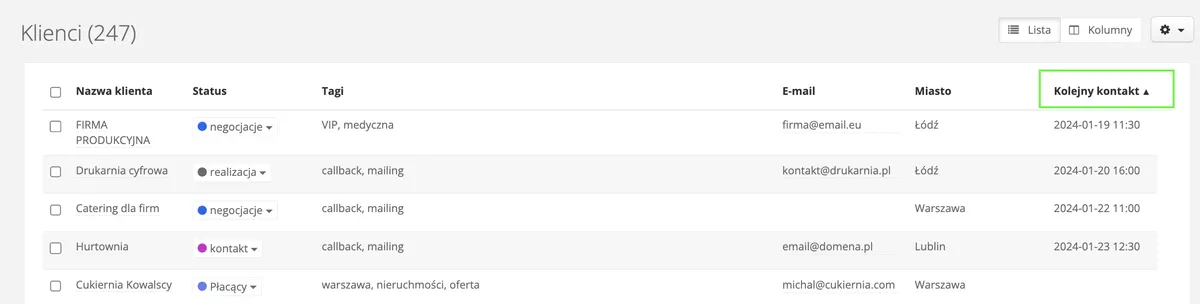
2. set a follow-up contact by creating a new custom field
See also: Stop forgetting! 4 effective tools in Sugester for remembering your next customer contact
3. or send a mailing.
If you provide your customers with a product or service, you certainly expect that a customer may have additional questions, problems with the service, or may report a bug.
How often does it happen that a customer does not provide all the necessary information right away and you still have to write back to them? How often does a bug report over the phone take twice as long because the customer and the consultant cannot always understand each other right away?
In each of these cases, and many others, the best and simplest solution may be to prepare a simple form for reporting bugs or technical queries, which you place on your website right next to the contact form.
If you carefully think through the fields you add to the form, you can significantly reduce the time it takes to handle technical requests, because:
If you are interested in automatic task creation from form results, you will use mapping - but this time to a task.
Just like with customer mapping, you define which form fields correspond to specific task data. This way the system will do the work of creating a task from scratch for you.
In addition to fields such as the subject and content of the request, you can include fields where the customer specifies the priority of their request, the type (bug, improvement, suggestion, etc.), and even the project the request should go to.
Additionally, if you include a "company name" field in the form and map it to "customer id", the task will automatically be linked to that customer.
How do you inform customers about news, discounts, or additional offers? If you do it occasionally, it is worth doing it systematically and, above all, on a broader scale.
The best way is a newsletter. And to send a newsletter you need a group of recipients. You can of course only send a newsletter to your existing customers, but that is a limited target group.
Instead, you can add an extra form to your page - a newsletter sign-up - and collect new contacts.
By adding a newsletter sign-up form to your website, you:
1. The form should be short and contain 2-3 fields to fill in (name, email address)
2. The "sign up" button can contain any other short text that you think will engage the visitor and encourage them to leave their email (get the ebook, claim my discount, I want updates, etc.)
3. Include a checkbox referring to the terms of use, newsletter policy or discount terms
4. Make sure the form matches your brand's color scheme and is memorable

If you run an online store, for example, you can use forms to streamline the complaint process.
A complaint form gives customers the ability to report problems, comments, questions, or complaints in an organized and easy-to-monitor way. As an owner, by providing such a form you show that you care about your customers and are ready to respond to their needs and meet their expectations.

Creating a complaint form is no different from the previous forms. It is important that it includes all the fields the customer needs to fill in for the complaint to be accepted.
Make sure your form includes:

Another way to use forms is to create a sign-up form for trials, training sessions, webinars, etc. If you do this through forms, you have all the registrations in one place. It is worth redirecting from other contact channels to this form. This way you maintain order among registrations.
Additionally, you can monitor in real time how many people have signed up for your training and which offerings are most popular. Just check the results table.
In the table you can also sort the data in ascending or descending order by the column whose results interest you most.


If you want your technical team to receive tasks from you that clearly describe the problem and provide comprehensive examples, you can also use forms in Sugester for internal task management.
How?
1. Think about which fields are missing when describing a task. It is best to talk with people from the technical team - what data do they most often lack, what do they usually need to ask about?
2. Create a form and map it to a task. Then the consultant fills in the template and the technical team immediately receives a ready-made task. When creating the form you can mark which fields are required. Without them, the system will not allow the form to be saved.
3. You can place the link to this template in the Shortcuts tab, making it easily accessible to every employee.

This kind of internal bug reporting has its advantages, because:
Perhaps this simple solution will improve collaboration between the helpdesk and the technical team in your company?
In this post we showed you a few of what we consider the best ways to use forms on a website. In reality, you can create a form whenever you need to collect specific data and save it in your CRM. Since you can create any number of fields with any topics, nothing limits you.
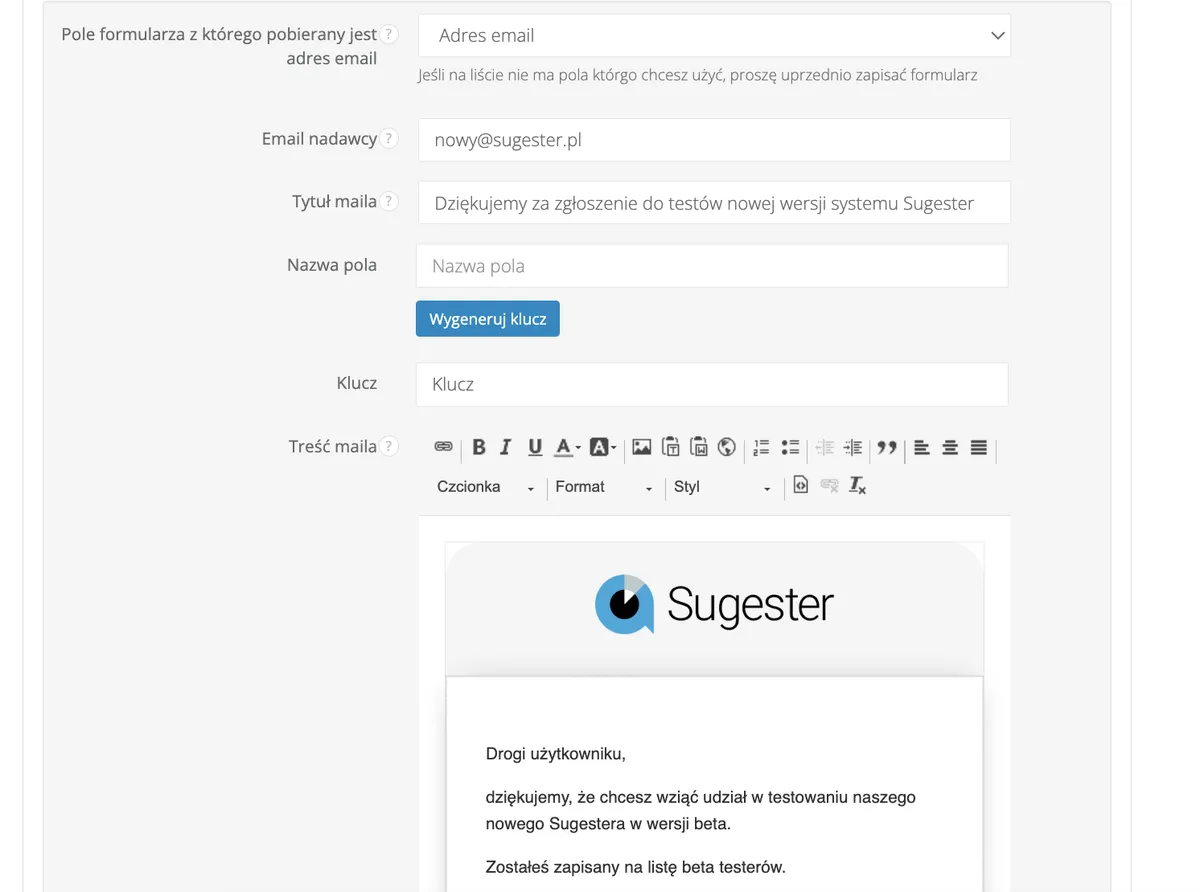
Additionally, the data you collect can be further processed, as the modules in Sugester are integrated with each other, making it easy to send an email, create a request, or schedule a mailing.